 Skip to content


You've probably seen it happen. A business owner updates their Google Business Profile, hides the address because they think it looks cleaner, and then nearby searches go quiet. Calls dip, the Map Pack shifts, and customers who used to find the business on Google Maps suddenly land on competitors instead.
That's because business address optimisation on Google Business Profile isn't just about neat formatting. It affects eligibility, visibility, and trust. Google says the address should match the physical location customers use, and it treats storefront businesses differently from service-area businesses, which can hide their address while storefronts should show it. If you want the practical route to how to optimise business address on Google Business Profile, start by treating the address field as a ranking and policy decision, not a cosmetic one. Why local businesses go invisible on Google Maps
Table of Contents
- Why Your Address Decision Affects More Than Just Directions
- Understanding Google's Address Requirements and Eligibility Rules
- Storefront Versus Service-Area Business Configuration
- Updating and Verifying Your Business Address Correctly
- Maintaining Address Consistency Across Citations and Directories
- Common Policy Violations and Mistakes to Avoid
- Strengthening Your Address with Visual Trust Signals and Testing
Why Your Address Decision Affects More Than Just Directions
A plumber hides a home address, assumes that's the safer option, and waits for the phone to ring. Instead, nearby visibility collapses. The listing still exists, but Google has less confidence about where the business serves customers, so the Map Pack presence near the home base weakens.
That outcome is common because the address field does more than tell people where to turn up. Google's official guidance says the business address should match the physical location customers use, and it separates storefront businesses from service-area businesses, with service-area businesses allowed to hide their address while storefronts should show it. The difference matters because it changes how Google classifies the listing and how local intent is interpreted in Maps.
Practical rule: if customers can walk in and be served at the premises, the address should be public. If the business travels to the customer, the address is usually for verification, not display.
For UK businesses, many listings drift off course. Local searches on Google Maps are strongly tied to proximity and location signals, so an address that's inaccurate, hidden when it shouldn't be, or too vague can reduce how reliably a profile appears for nearby searches. That's why address optimisation is really a visibility decision.
Google also limits profile descriptions to 750 characters according to Chatmeter's summary of Google Business Profile guidance, so you can't stuff in extra location detail to compensate. The address has to carry its weight, cleanly and consistently.
For a local business, this is the point where policy and performance meet. Choose the wrong address treatment, and you don't just confuse customers. You can end up with a profile that's weaker in Maps, harder to trust, and more likely to trigger Google's filters.
Understanding Google's Address Requirements and Eligibility Rules
Google is much stricter about address quality than many owners realise, and the wrong address choice can affect both eligibility and visibility. A business needs a physical address to appear on Google Maps and local search results, and PO boxes and virtual offices are not acceptable as primary business addresses. That means the address has to point to a real place, not a mailbox service or a shared office label. BizIQ
What qualifies and what fails
A customer-facing shop, clinic, office, or workshop that staff use can usually support a valid profile. A PO box, a virtual office, or a fabricated suite number cannot. If you operate from more than one site, each location needs its own unique address. That matters for multi-site operators because Google expects each listing to represent one real place, not a duplicate cluster.
The fastest self-check is simple. Ask whether a customer could reasonably arrive there, find signage, and interact with your business at that location. Google's guidance for complete and accurate information says businesses with complete details are more likely to appear in local results, and it specifically recommends a full address for locations customers can visit, plus verification and current hours Google Business Profile help.
Google is not looking for the prettiest address format. It is looking for a location it can trust.
A quick audit before you edit
Use this checklist against your current profile:
- Real premises: The address should be a staffed, customer-facing location, not a mailbox or shell office.
- Exact match: The profile should match the premises signage and your core citations.
- One location, one listing: Each branch or office needs its own address.
- Verification ready: The business should be able to complete Google's verification process.
A useful way to think about this is that the address is both an eligibility test and a trust signal. If it fails either one, the profile can become unstable before any category work, review work, or geo-grid tracking has a chance to help. For service-area businesses that need a separate setup, a service-area business address guide helps clarify what should stay hidden and what Google still expects during verification.
Storefront Versus Service-Area Business Configuration
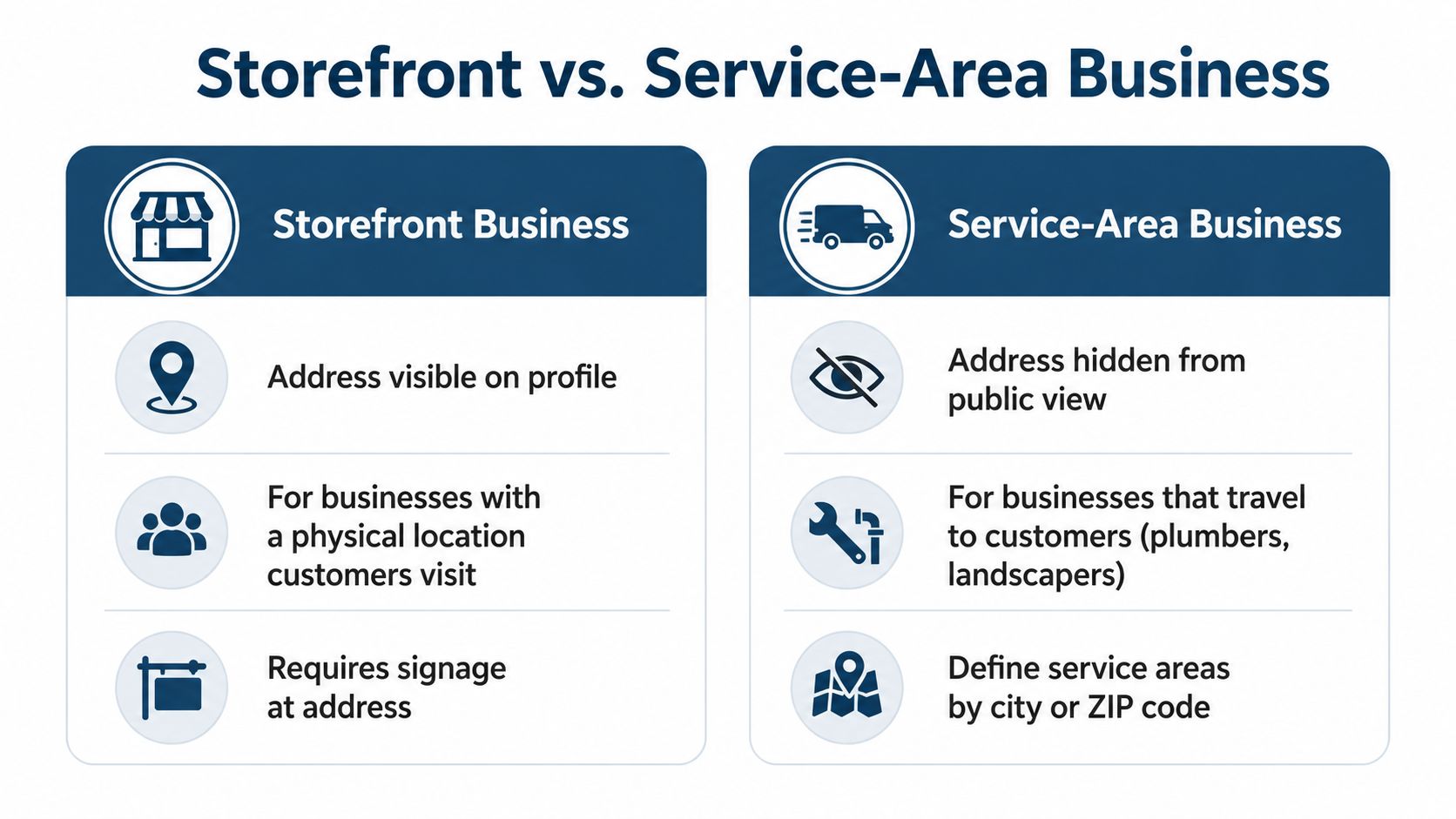
A café on the high street and a locksmith working out of a van should not set up Google Business Profile the same way. That sounds basic, yet I still see suspensions and soft suppressions start when owners copy the wrong structure from the wrong business type. The address choice affects more than directions. It affects how Google classifies the listing, how much trust it assigns to the profile, and whether the business looks eligible for the Map Pack at all.
When to show the address
If customers visit your premises, set the address and leave the service area field empty. A location-based business should present itself as a place people can walk into, and the address needs to stay visible so Google classifies it correctly. Ahrefs' guidance on Google Business Profile also points out that storefront businesses should use their address and keep the service-area field empty.
Retail shops, salons, cafés, accountants' offices, and clinics usually belong here. The issue is not just public display, it is classification. If Google sees a storefront-style business hiding its address without a real reason, the profile can look inconsistent and attract review, verification, or visibility problems.
When to hide the address
If you serve customers at their locations, the address can still be entered for verification and then hidden from public view when there is no customer-facing storefront. Google's own guidance for service-area businesses supports that setup, and businesses that travel to customers should hide the address Google support via YouTube guidance. A locksmith, mobile mechanic, drain specialist, or domestic cleaner often fits that pattern.
Good test: if a customer never needs to visit your premises, publicising a home address usually creates more risk than value.
That does not mean the profile should look incomplete. Service areas still need to be configured properly, but the wrong move is showing a residential base that customers will never visit or hiding a real shopfront that should be visible. Either mistake can blur Google's understanding of the business and make the listing harder to trust.
For a tighter walkthrough of service-area setup, the most useful practical reference is this guide on service-area business configuration. The point is simple. Match the public profile to how the business operates, because that choice affects both eligibility and day-to-day visibility.
Updating and Verifying Your Business Address Correctly
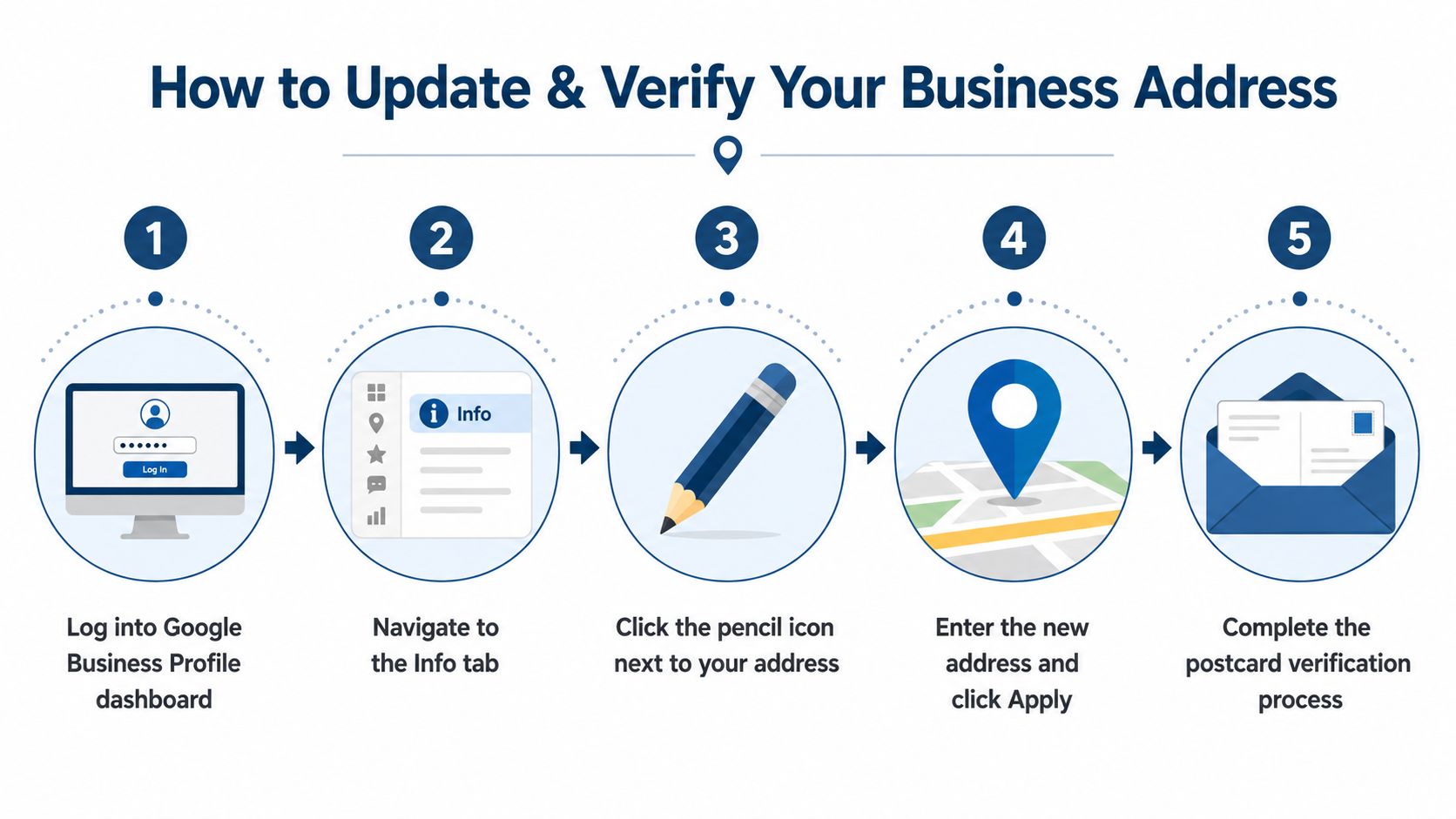
A business address change can look like a simple profile edit, but it is one of the fastest ways to trigger Google's filters if the update is handled carelessly. Google is very literal about the path it expects you to use when you edit address details. Its help page says to open the Maps app, tap Business, choose Edit profile then Location, edit Business location, and save the changes Google support. That workflow matters because the wrong edit path often leaves owners unsure whether the update saved, or whether they have just created a verification problem.
The clean edit path
Open Google Maps, go to your business entry, and follow Google's navigation path exactly. Once the address is updated, check that the formatting is complete, the pin lands where it should, and the profile no longer shows any old location detail.
Use the edit path that fits your setup, and keep the business record aligned with how Google expects the location to be managed. If you need a practical walkthrough for handling profile changes inside the dashboard, this Google Business Profile manager workflow guide shows the kind of account handling that keeps updates orderly.
If the edit triggers re-verification, do not keep changing the address in the hope that it will clear faster. Verification comes before geo-grid work or category work has much chance of moving the Map Pack in a meaningful way. If the listing is paused for review, keep the business information stable until Google finishes processing the update. Frequent edits during that window are one of the quickest ways to draw more scrutiny.
What to check after saving
Use this short post-update audit:
- Maps pin: Confirm the pin sits on the correct building.
- Profile display: Check that Search and Maps show the intended public address or hidden setup.
- Core details: Review hours, phone number, and website while you're in the profile.
- Consistency: Make sure the new address format matches the rest of your online presence.
Address edits deserve the same care as a category change or a move request. A small formatting mistake, a misplaced suite number, or a pin that drops on the wrong entrance can create enough doubt to slow review or weaken trust. If a team member or agency handles the update, keep the process tight and document what changed so you can reverse it if Google reacts badly.
The safest mindset is simple. Change the address once, confirm it properly, and leave it alone unless the business has moved.
Maintaining Address Consistency Across Citations and Directories
The hardest address problem is usually not Google itself. It's the rest of the web. Your profile can be valid, but if the business name, address, and phone data drift across directories, Google has to sort through conflicting versions of the same business, and that confusion can affect both visibility and trust.
Why matching matters
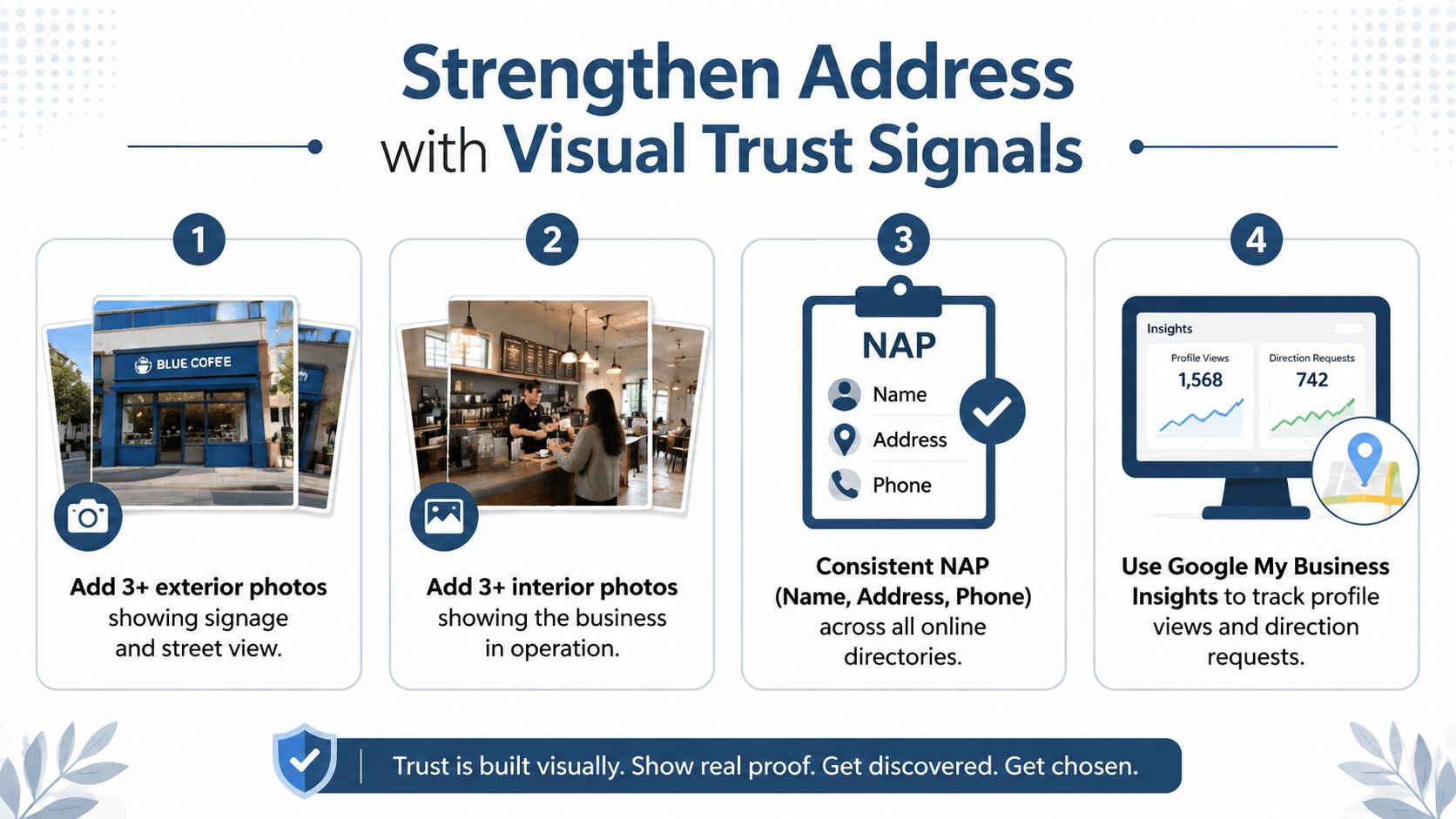
Google expects the business address to line up with the physical-world setup and with the way your business is presented elsewhere online, including signage and other citations. When NAP, Name, Address, Phone, is inconsistent, Google has less confidence in the listing, and that can show up as suppressed visibility or a review problem Google Business Profile help.
A clean update on Google alone is not enough. The address should match the version on your website, the main directories you control, and any other important listings that customers see. If one source says “Unit 4B”, another says “4B”, and a third uses a different postcode format, you have created avoidable doubt. That kind of mismatch is small on paper, but it gives Google more reasons to question whether the profile is stable.
A practical audit sequence
A reliable workflow looks like this:
- Confirm eligibility for a location-based profile or service-area profile.
- Verify the listing if Google asks for it.
- Standardise the address format across the main directories you already use.
- Audit after changes such as a move, rebrand, or holiday-hour update.
That sequence works because it fixes the profile at the source first, then removes the conflicts that can undermine it elsewhere. The aim is not perfect formatting for its own sake. The aim is to give Google one clear, consistent version of the business so the address does not become a signal of risk.
If you manage more than one location, the importance increases. Each listing should represent one real site, with one precise address and one matching pattern everywhere it appears. When that structure stays stable, local trust usually improves because the profile stops fighting itself, and that gives the Map Pack fewer reasons to shuffle the listing down or hold it back during review.
Common Policy Violations and Mistakes to Avoid
Address problems usually begin with a small shortcut. An owner wants privacy, flexibility, or a cleaner look on the profile, and the result is an address that gives Google a reason to doubt the listing.
The mistakes that cause the most trouble
The most common error is adding a fake suite number or massaging the address so it looks more established than it really is. That can include inventing a unit, borrowing a neighbouring office number, or writing the address in a way that suggests a staffed location when customers cannot visit there. Google's systems are built to catch that kind of mismatch, and it is one of the fastest ways to trigger a suspension review Google Business Profile help.
Address stuffing causes a similar problem. This happens when owners add extra words, floor labels, building names, or unrelated location details to try to influence visibility. The profile may still look readable to a person, but the format no longer matches the physical premises. That inconsistency can weaken trust across Google's systems, especially if the same business name and address are written differently on the website, the listing, and the directories customers view.
Formatting drift is another issue that gets ignored until rankings slip. One source shows “Suite 12”, another shows “Ste 12”, and a third drops the suite entirely. Small differences like that do not always cause a penalty on their own, but they create friction during review and can make the listing look less stable than a cleaner competitor profile.
What usually makes recovery harder
Suspensions often last longer when the business keeps changing the address details while trying to fix the problem. If the profile has already been flagged, the first job is to remove the false detail, standardise the public-facing version, and keep that version consistent everywhere the business is listed. Repeated edits during recovery can make the listing look uncertain, which slows down the review process and can invite more scrutiny.
The other mistake is treating a bad address like a copywriting problem. Rewriting the wording without correcting the underlying premises does not help. If the location, signage, or contact details do not line up with what Google expects to see, the profile stays vulnerable until the real-world record is cleaned up.
If a listing has already been suspended, the safest recovery path is usually straightforward. Fix the address at the source, remove any misleading formatting, update the website and major citations to match, then submit the profile again with evidence that supports the actual business location. That is slower than trying to force the profile back live with a cosmetic edit, but it is the approach that tends to hold.
Strengthening Your Address with Visual Trust Signals and Testing
A correct address is stronger when the rest of the profile proves the location is real. Google's own optimisation guidance, as noted earlier, says location businesses should set their address and leave the service area empty, and it recommends enough exterior and interior photos for customers to recognise the site. Those visuals matter because they support the address instead of sitting beside it as decorative extras.
Use photos to confirm the place exists
Exterior photos should show signage, frontage, and the street around the property. Interior photos should show the business in operation. Together, they help customers confirm they have found the right place, and they make the address feel like part of a real location rather than an abstract listing.
That visual proof matters most when the address sits in a dense area or the building is easy to miss. If users cannot identify the premises from the profile, they are less likely to trust directions or choose the business over a competitor with a clearer setup. In practice, weak visual signals can also make a profile look less stable during Google's checks, which is a bad position to be in if the address is already sensitive.
Test the impact instead of guessing
Once the address and visuals are cleaned up, test visibility with geo-grid rank tracking. That means checking how the listing performs from different points around the business, not just from the office. It is a practical way to see whether the profile is appearing where local customers search, and whether the address change is helping or just making the listing look different on paper.
If rankings still do not move, the issue may not be the address. Competitor density, category choice, and the strength of nearby listings can all shape results. Address quality is a foundational ranking-input, but it still sits inside a wider local SEO system.
A reliable monitoring routine is better than obsessing over one map screenshot. Check the profile, compare the location signals, and keep the address, photos, and citations in lockstep. That gives Google fewer reasons to question the listing, and it helps you spot whether the actual problem is visibility, eligibility, or both.
If your Google Business Profile still feels unstable after you have corrected the address, use a proper geo-grid audit and citation check before making more edits. VisiLocali is built for that kind of work, so you can see where the listing is weak, fix the right issues first, and stop guessing which change matters.
