 Skip to content


Your café opens for lunch, shuts for the afternoon lull, then reopens for dinner. One bank holiday and one event weekend later, the hours on Google are wrong, staff are answering pointless calls, and a customer is stood outside with a takeaway bag wondering why the doors are locked. That's the mess Special Hours are meant to prevent, and if you run more than one location, they're not a nice-to-have, they're an operational control.
Table of Contents
- What Special Hours Actually Do on Your Profile
- Setting Special Hours for a Single Location
- Managing Special Hours Across Multiple Locations
- The Indirect Impact of Special Hours on Local Visibility
- Common Special Hours Problems and How to Fix Them
- A Recurring Special Hours Workflow That Gets Done
What Special Hours Actually Do on Your Profile
Special Hours are a date-specific override layered on top of your regular opening hours. Google's own help says they're for unusual days such as holidays or special events, and they're also the right tool when a business temporarily adjusts hours or stays closed for 6 days in a row or fewer. If your main hours aren't set to Open, Google won't show Special Hours to customers, so the regular schedule has to be clean before you touch the exception layer. Google Business Profile Special Hours guidance
A UK café group is a good example. Say your branches run split lunch and dinner services, then one site closes early on the August bank holiday while another stays open for brunch and a private booking. That isn't a new weekly pattern, it's a temporary override, which is exactly where Special Hours belong.
Practical rule: regular hours tell Google what you normally do, Special Hours tell Google what changes on a specific date.
Regular hours, Special Hours, and More Hours are not the same thing
Google separates these fields for a reason. More Hours are for sub-services such as delivery, drive-through, or pickup, and Google says those are configured independently from one another. Special Hours, by contrast, are for temporary date-specific changes. If you use the wrong field, you end up with a profile that looks tidy in the backend but behaves badly in Search and Maps. Google's More Hours help
That distinction matters in real operations. A restaurant can have normal dine-in hours, delivery hours, and a one-off Easter closure, and each of those belongs in a different place. If you treat them all as the same thing, you'll overwrite useful data or create contradictions that customers will spot before your team does.
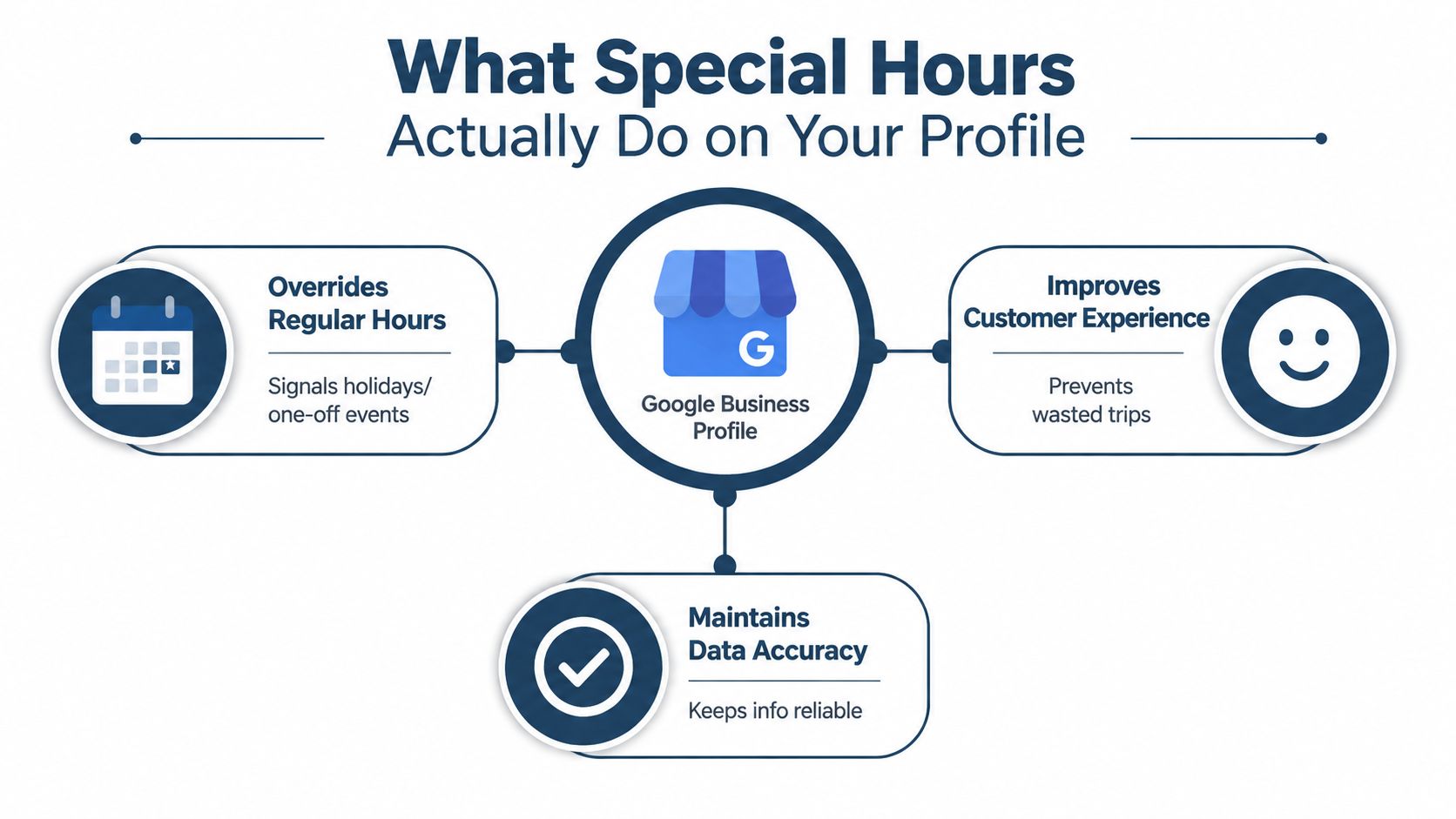
The job here is simple. Keep the weekly schedule stable, then add dated exceptions only where the calendar demands it. That gives Google the cleanest possible version of the truth, and it keeps customers from making wasted trips.
Setting Special Hours for a Single Location
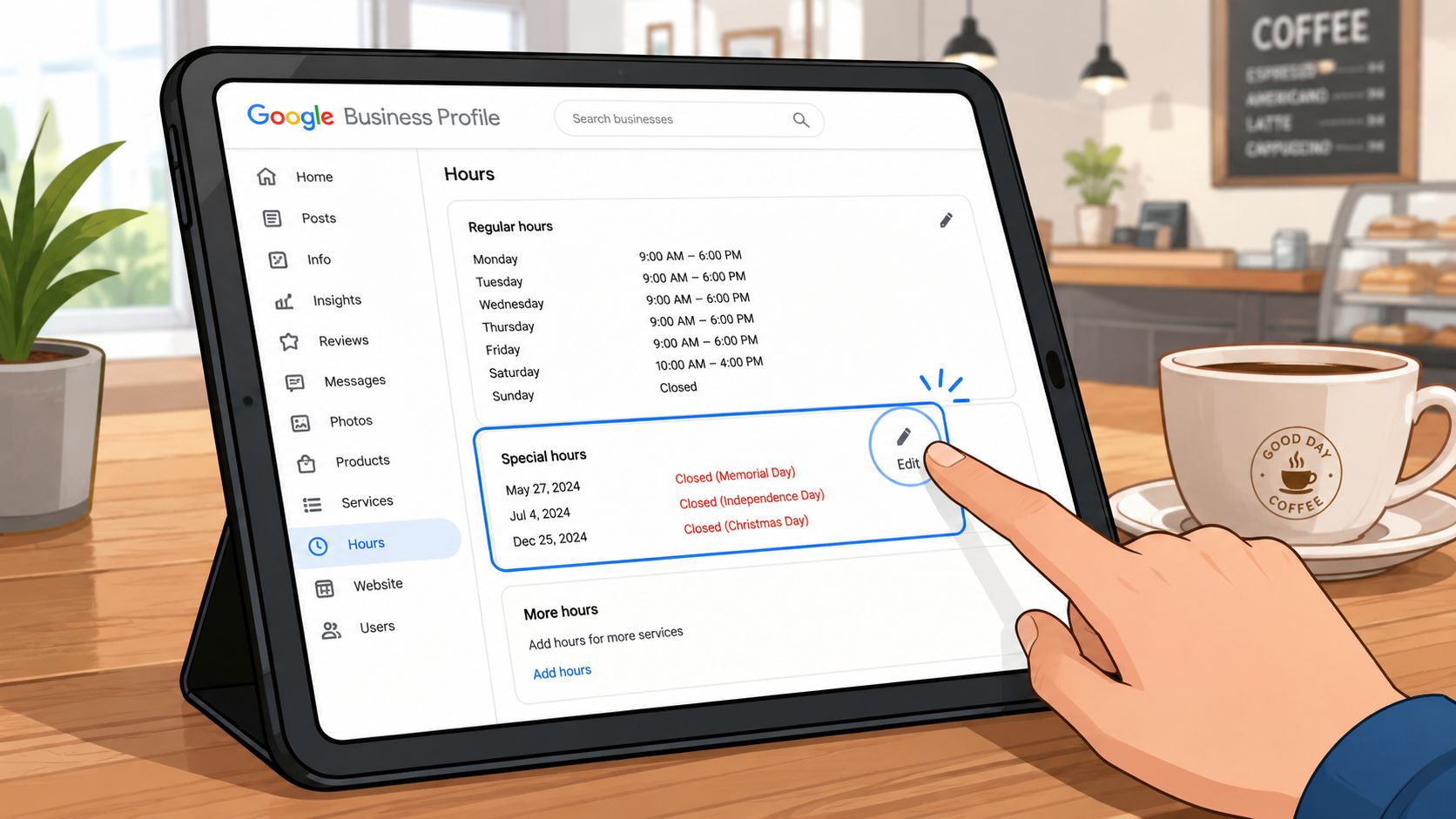
The clean way to do this starts inside your Google Business Profile, not in a separate spreadsheet or a note from head office. Google's setup flow is date-led, which is the right model for a temporary override because you're changing one day, not rewriting the business. The safest habit is to check that the main hours are already correct, then edit only the special date you need. Google's Special Hours setup instructions
When you open the hours editor, Google lets you add a custom date, confirm a suggested date, mark the day closed, or enter multiple open-and-close ranges. That last bit matters for split service windows, like a café that serves breakfast, shuts for a break, then reopens for an evening menu. The entry only appears on the designated day, so you don't need to touch the weekly timetable unless the permanent schedule has changed.
Use the date carefully, then match the trading window exactly
The most common mistake is selecting the wrong day, usually because someone's clicking too fast before a bank holiday or event. The second mistake is leaving a default time in place that doesn't match the rota. Both errors are avoidable if you treat the edit like a live customer-facing change, not a housekeeping task.
Operational rule: if the staff rota changed, the profile should change before customers search.
For a single location, I'd keep the process brutally simple. Decide whether the day is fully closed, partially open, or split into multiple sessions. Then enter only the times that staff can reliably honour. Don't use Special Hours to “nudge” customers into an optimistic impression of availability, because that's how you create complaints, not demand.
If you're managing this through a dashboard rather than jumping between admin screens, the workflow inside VisiLocali's Google Business Profile manager guide is the sort of place to centralise that review. The point is the same either way, keep the exception visible, dated, and precise.
Split shifts need multiple ranges, not a workaround
Google's date-level editor supports multiple open-and-close ranges for the same date, which is exactly what you want for lunch and dinner service or appointment-based trading. Use that properly. Don't fake it by shortening one block and hoping the customer understands the gap.
A good test is to ask one question, “Would a customer arriving at the edge of this window be misled?” If the answer is yes, the hours are wrong. That's the standard, not internal convenience.
Managing Special Hours Across Multiple Locations
Once you've got more than a handful of sites, hand-editing each profile becomes slow enough to cause mistakes. Google's bulk path is the better operational model because it treats Special Hours as a structured data set. In the spreadsheet, you use the Special hours column, put x in place of a full closure, and import the file so the changes show only on the dates you specified. Google also allows multiple sets of hours for the same date through Add hours +, which is useful for sites with split shifts or bookable windows. Google GBP bulk Special Hours guidance
| Task | In-Profile Editor | Spreadsheet Bulk Upload |
|---|---|---|
| One-off holiday closure | Fine for a single site | Better when several sites close on different dates |
| Split service windows | Possible with multiple ranges | Easier to standardise across many locations |
| Full-day closure | Quick to enter manually | Use x in the Special hours column |
| Large estate updates | Easy to miss one branch | Safer because the sheet becomes the source of truth |
| Audit trail | Weak and scattered | Stronger, because the file shows the decision set |
For agencies and operators, the decision isn't whether the sheet is prettier. The decision is whether the calendar lives in one place. If franchisees can edit hours independently, you need a very clear approval rule, or you'll end up with branches showing different holiday behaviour for no business reason.
Centralise the calendar, then allow local exceptions only where needed
I'm opinionated on this. The location owner should not be inventing holiday logic from memory. Someone at head office, or someone responsible for local search ops, should own the master dates, then local managers should only handle exceptions that are site-specific. That keeps your profile data aligned with the actual operating model instead of the loudest person in the inbox.
| Decision point | Best practice |
|---|---|
| Which locations close on bank holidays | Decide once in a shared calendar |
| Private events or franchise-specific closures | Let the local manager flag them early |
| Split service times across a chain | Standardise the pattern where possible |
| Final publication | Push from one source of truth |
The more locations you manage, the more Special Hours becomes a control system rather than a clerical task. That's the point of using the spreadsheet path. It gives you one file to review, one set of edits to approve, and one place to catch mistakes before customers do.
The Indirect Impact of Special Hours on Local Visibility
Special Hours do not act like categories or reviews, and I would not treat them as a direct ranking lever. They still shape what happens after someone finds your profile, and that behaviour feeds back into trust. If your hours are wrong, people bounce, call to check, or go somewhere else. If your hours are accurate, they stay in the interaction and make a decision faster.
That is why bad Special Hours hurt local visibility indirectly. The profile looks unreliable, customers waste time, and your team deals with avoidable friction. That kind of weakness matters in Maps, especially on bank holidays and event weekends when competitors often forget to update their listings.
A profile that says Open when the door is shut burns trust faster than a missing post ever will.
The primary risk is customer disappointment, not a spreadsheet error
When customers search for a business in Maps, they are usually trying to act now. A wrong hours field creates a dead-end experience. The customer does not think about your admin process, they just think the business cannot be trusted to show the basics correctly.
That is why I care about Special Hours as an operational detail. It protects the first click and the first visit. It also keeps direction requests, phone checks, and walk-ins aligned with reality instead of guesswork. If you want the broader local visibility case, I have laid out the mechanics in why your business is invisible on Google Maps.
Accuracy wins when competitors leave the field dirty
UK businesses get hit hardest around bank holidays because customers make assumptions. If your profile is updated and a competitor's is not, you look calmer, more organised, and easier to trust. That matters before anyone even reads your reviews.
The point is not to chase a mythical hours ranking boost. The point is to remove the friction that makes people back out of the listing. Clean Special Hours help the profile do its job, which is to answer the open-now question without hesitation.
Common Special Hours Problems and How to Fix Them
The cleanest way to troubleshoot Special Hours is to start with the customer-facing symptom. If the listing looks wrong, the issue is usually a simple structure problem underneath it. Confusion between Special Hours and More Hours causes a lot of the mess, because Google treats them as separate fields and expects each one to be set on its own. Google's More Hours help
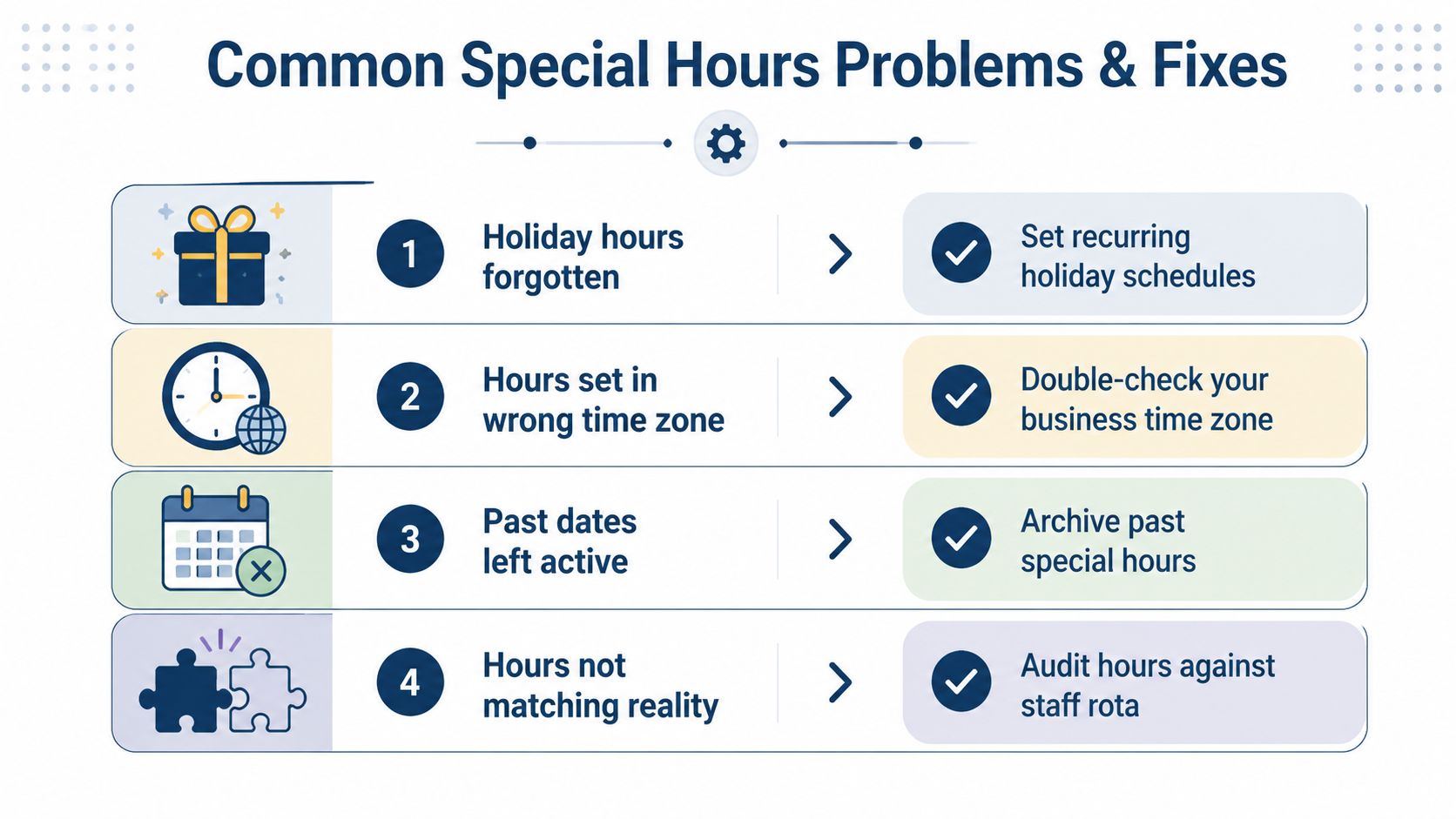
Symptom, likely cause, fix
- Special Hours don't appear at all. The usual problem is that the base hours for that day are not set to Open. Fix the main schedule first, then check the dated override again.
- The wrong date is showing. This is usually a calendar mistake, a year mix-up, or a timezone mismatch. Correct the actual date entry, not just the label you can see.
- Bulk changes look like they reverted. That usually means the spreadsheet had conflicting rows or the wrong location and date combination. Clean the sheet, then import one source of truth.
- Hours don't match the operation. Compare the profile against the staff rota, then correct the field that reflects the actual trading window.
Practical rule: if the issue feels random, check whether you edited Special Hours when you meant More Hours, or the other way round.
For large estates, an API-based workflow can make sense if you already run structured location data and want fewer manual touchpoints. I would not start there. In most cases, the bigger win comes from tighter ownership, a cleaner spreadsheet process, and a review habit that catches bad edits before customers do.
The problem is not the tool. It is letting different people treat the same branch as if it has different hours in different systems. Once that happens, every correction turns into a chase. Keep one owner, one calendar, and one published version.
A Recurring Special Hours Workflow That Gets Done
Special Hours work when they sit inside a real operating calendar, not as a last-minute fix before a closure. I'd run the process in four beats. Review the profile after each quarter, plan the next bank holiday in advance, confirm one source of truth across all locations, then verify the live profile on the day itself. That is the pattern that keeps the field from turning into a yearly scramble.
The simplest teams do this better than the busiest teams. They do not rely on memory, and they do not leave holiday edits until the morning customers start searching. They keep a short list of known exception dates, check it regularly, and publish the changes before customer demand becomes urgent.
Use one operating rhythm, not ad hoc edits
- Review after each quarter. Scan the dates already published and remove anything stale.
- Plan ahead for the next bank holiday. Do not wait until the week of the closure.
- Keep one calendar across sites. Different branches can have different hours, but the logic should come from one place.
- Verify on the day. Check the live profile while the trading day is happening.
Choosing the right platform matters here. If you are comparing tools for this process, the guide on how to choose a local SEO optimization tool is useful because it forces you to think about workflow fit, not just feature lists. VisiLocali handles Special Hours as part of its profile management workflow, so the update sits with the rest of the local search tasks instead of floating around in a separate mess of tabs.
The next move is simple. Review your main hours, then audit the next four exception dates on every location profile you manage. If you are still handling this manually, tighten the process now. If you are ready to stop treating Special Hours like a checkbox, open your workflow, fix the obvious gaps, and put the calendar under one owner today.
