 Skip to content
A Manchester salon owner can do everything right after a client's appointment, then lose the review because the follow-up text sends customers to a full Google search result. The customer has to find the correct business, open the profile, locate the review option, and work out whether they're signed in to the right account. Many customers abandon the process.
A direct Google review link removes that uncertainty. It takes the customer to the review form for the correct Google Business Profile, making the request easier to complete on desktop, Android, and iOS. For UK businesses, that small reduction in friction matters because the UK government's research on online reviews found that 54% of UK adults read reviews, while 76% to 80% of review users said reviews were very likely or fairly likely to influence a purchase decision.
Table of Contents
- Why Your Google Reviews Link Matters More Than You Think
- Three Ways to Generate Your Google Reviews Link
- Turning the Link into a Trackable Campaign Asset
- Choosing the Right Method for Your Setup
- UK Compliance Rules When Asking for Reviews
- Troubleshooting When the Link Stops Working
- Measuring Whether the Link Is Improving Your Rankings
Why Your Google Reviews Link Matters More Than You Think
The link isn't just a convenient button. It's the entry point into a Google Business Profile review funnel, which starts with a completed customer interaction and ends with a public review that prospective customers can read.
A generic instruction such as “search us on Google” breaks at several points. On desktop, the customer may see directory pages, old listings, or similarly named businesses. On Android, Google may open the Maps app rather than the intended review composer. On iOS, the same URL can open a browser or app state that leaves the customer searching again. Each extra action gives the customer a reason to stop.
Practical rule: Send customers to the review form, not to your business name.
Reviews also influence the commercial value of your profile. They can affect how confidently a searcher clicks from the local results or Knowledge Panel, and they provide evidence that helps a prospect choose between nearby businesses. Google doesn't promise a ranking increase for every new review, so a review link shouldn't be sold internally as a guaranteed ranking lever. It should be treated as a measurable input into a broader local SEO process.
The UK market gives that input real weight. The CMA's January 2025 update on fake reviews reported that 89% of consumers use online customer reviews when researching a product or service, and that as much as £23 billion of UK consumer spending may be influenced by reviews annually. The same update also highlights the enforcement risk, so convenience must sit alongside authenticity.
A strong workflow uses the same profile-specific link across post-service messages, receipts, email signatures, WhatsApp, and printed QR codes. The link becomes a campaign asset with a source, audience, and outcome attached to it. For practical UK examples of asking for genuine feedback, the Google review guide for UK SMEs is a useful companion resource.
Three Ways to Generate Your Google Reviews Link
Google's current interface gives most business owners a straightforward route through the Business Profile itself. Sign in to the Google account that manages the profile, search for the business, and open the profile controls.
Method one through the Business Profile on desktop
- Search for your business name while signed in to the managing Google account.
- Open the Business Profile management panel.
- Select Read Reviews or Ask for reviews.
- Choose Get more reviews or Share review form.
- Select the option to copy the review link.
The result is usually a short Google-generated redirect for that specific profile. It's the most practical option for a single-location owner because the dashboard also gives access to review management and profile controls.
Google's supported help flow also allows you to download a QR code from the same area. That makes the desktop route useful when you're preparing counter cards, menus, appointment packs, or printed receipts.
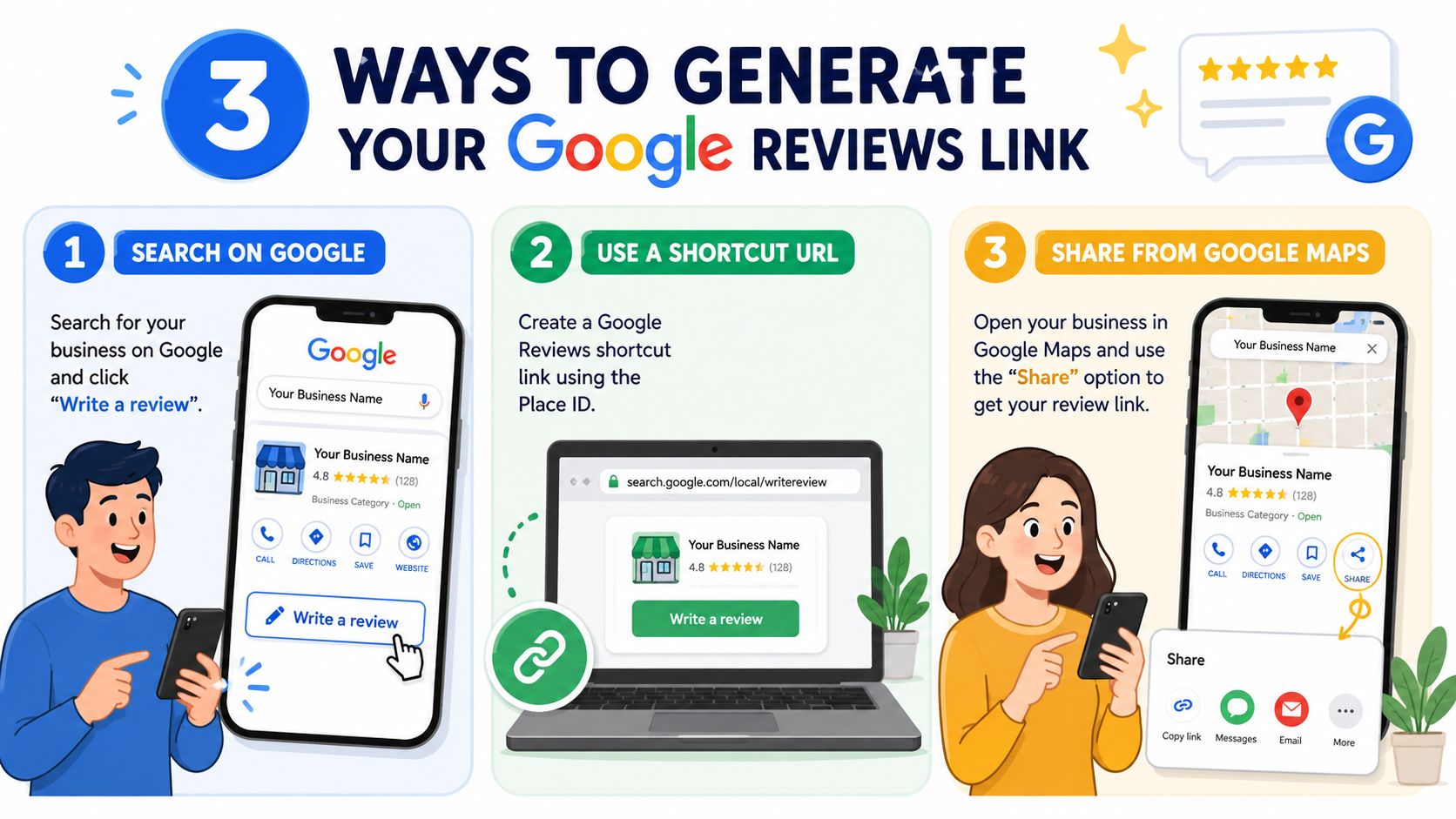
Method two through Google Maps on mobile
Open Google Maps on your phone and search for the business. Tap the correct profile, scroll to the review area, and use the sharing controls around Write a review or the profile's share option.
Android and iOS may open different app or browser destinations, so test the result on both operating systems if staff will distribute it. A Maps share link commonly returns a Maps intent or profile destination rather than the same short redirect generated by the Business Profile dashboard. It can still work well for tradespeople and reception staff who request feedback immediately after a job or appointment.
Method three with a Place ID
A Place ID is an identifier that connects a Google location to a specific profile. Use Google's Place ID lookup tool, enter the business name, choose the matching location, and copy the returned identifier. You can then place it into Google's direct review format:
`
The output is a direct write-review URL, but it needs careful testing. A typo, duplicate listing, or merged profile can send customers to the wrong place.
If you're building a repeatable process around multiple customer touchpoints, resources such as OrderBoosts review campaigns can help you think about timing and distribution. The important control remains the same, use the correct profile and request honest feedback from customers without filtering the audience.
Turning the Link into a Trackable Campaign Asset
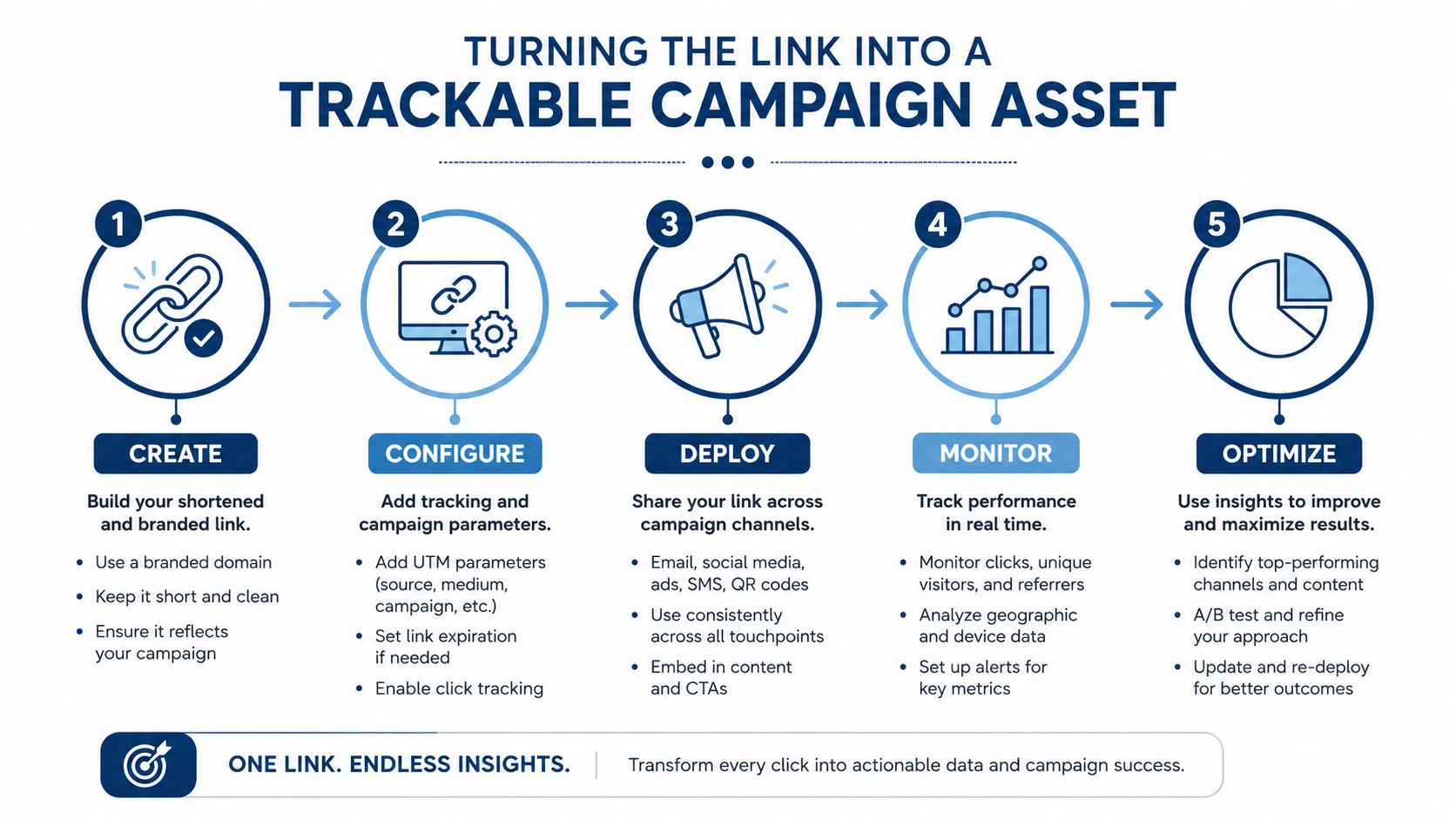
A copied Google URL is only the starting point. To understand which customer touchpoints generate visits and completed reviews, create controlled versions for each channel while keeping the underlying Google destination intact.
A branded short link is easier to read aloud, print, and recognise in a message. Use a custom short domain or a branded Bitly link rather than an anonymous string where possible. Test the shortened version before launch, because a link that works in one browser can still fail if the destination profile is wrong or unavailable.
For website and email traffic, append UTM parameters to the branded redirect. UTM parameters are labels added to a URL so analytics tools can identify the source, medium, and campaign. Create separate versions for email, SMS, and receipts, then review those channels in GA4. The redirect should still send the customer to the same Google review destination.
Match the message to the channel
- SMS: Keep the message concise, with the review link near the call to action. A practical limit is under 160 characters when you want to avoid a longer message format.
- Email: Put the review button or linked wording above the fold, meaning customers can see it without scrolling.
- WhatsApp: Use linked text where the interface allows it, so the branded tracking redirect remains intact rather than pasting several long parameters.
- Receipts: Print the request and QR code on the reverse, where it doesn't compete with payment details and can be used after the customer has left.
- Printed signage: Use a high-contrast QR code with clear surrounding space. Test it from normal scanning distance on both Android and iPhone cameras.
A QR code is a visual encoding of the same URL. It doesn't create a separate review destination, so you can replace the printed asset later without changing the profile link itself.
Don't confuse link clicks with completed reviews. A tracker can show that someone opened the destination, but Google controls the final write-review interaction. Use campaign traffic alongside new-review counts and timing, rather than treating clicks as proof that a review was submitted. For related profile URL considerations, see how to optimise your website URL on Google Business Profile.
Choosing the Right Method for Your Setup
The right method depends on who creates the link, where customers receive it, and whether several locations need separate workflows.
| Method | Best For | Time to Generate | Multi-Location Ready | Main Limitation |
|---|---|---|---|---|
| Business Profile manager | Single-location owners working on desktop | Short | Requires a separate link for each profile | Needs access to the managing Google account |
| Google Maps mobile share | Tradespeople and front-of-house staff | Short | Usable, but manual across locations | The destination can vary between app and browser |
| Place ID lookup | Multi-location brands and agencies | Moderate | Yes, with careful location matching | A copied identifier can point to the wrong profile |
Use the Business Profile manager link where the owner controls the login and the profile is verified. It provides the officially generated short redirect, supports QR-code downloads, and makes it easier to confirm that requests reach the intended listing. This suits a single-site business whose owner or manager can maintain the link from a desktop.
Choose the Google Maps mobile method when staff request reviews in person after a completed job. The quick share action fits trades and front-of-house teams, particularly when the link is sent immediately through the channel already used with the customer. Test the complete workflow on the staff device and in the chosen channel, including any email signature or messaging template, before rolling it out.
The Place ID method works for agencies and multi-location brands building a repeatable process. Each branch can have its own campaign asset and tracking label, which makes performance easier to compare across profiles. The trade-off is administrative: every identifier needs checking against the correct listing, and the process should be documented before links are distributed.
For a salon or independent shop, start with Business Profile manager. A mobile trades team will usually manage the workflow more easily through Maps. A multi-location brand or agency should use Place IDs with a verification checklist, then connect each link to its relevant campaign placement.
UK Compliance Rules When Asking for Reviews
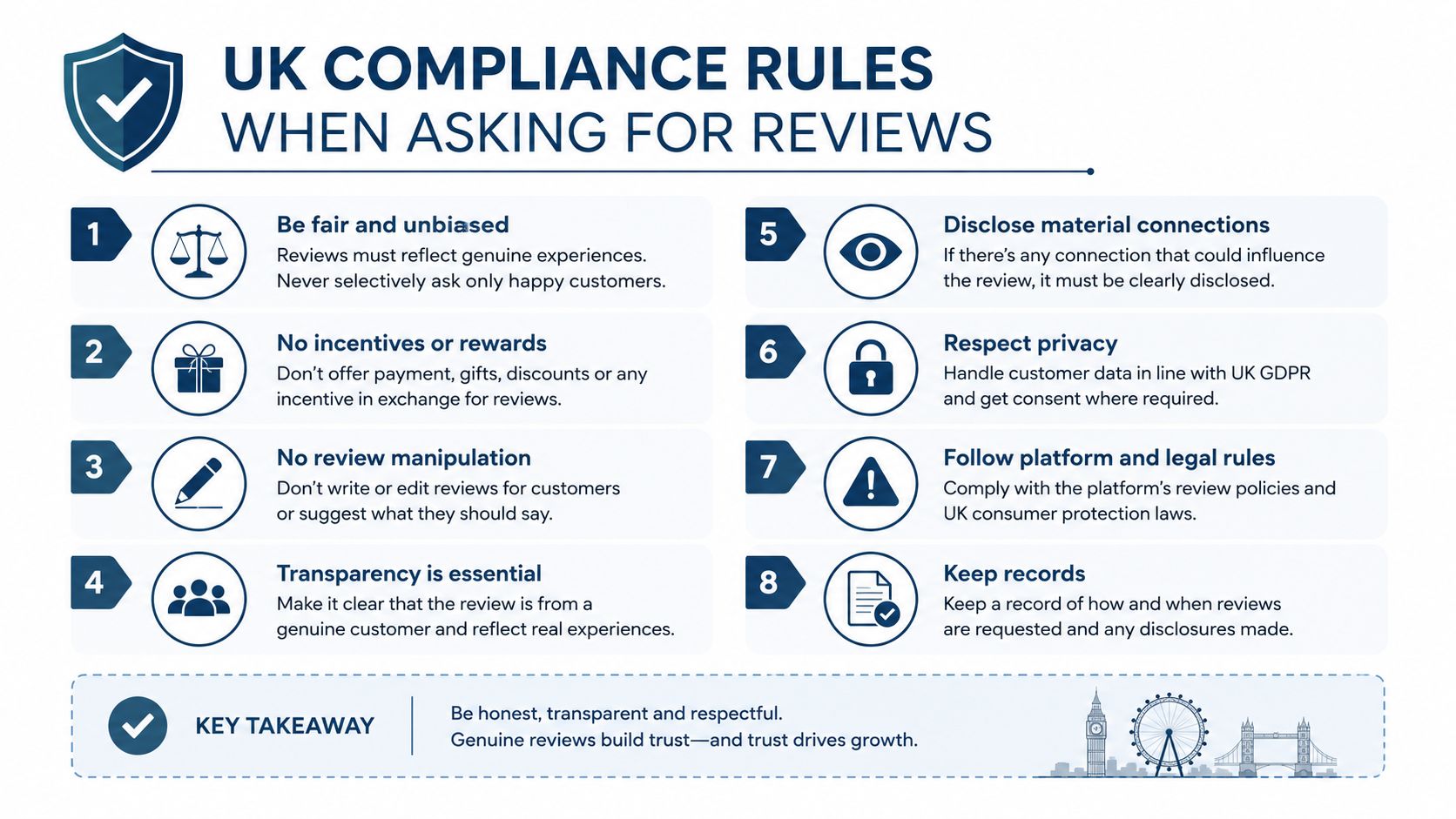
The UK compliance issue is no longer something to leave until a complaint arrives. The CMA's reviews and social media endorsements guidance addresses fake reviews and concealed incentivised reviews, while Google can restrict review functionality when businesses breach policy.
You can ask every customer for an honest review. You shouldn't ask only customers you already know are satisfied, pay people for a review, offer a discount for a review, or make a positive rating a condition of receiving an offer. The request must invite genuine feedback, not manufacture a preferred score.
That distinction affects the link flow directly. These approaches create avoidable risk:
- Satisfaction gating: Send unhappy customers to a private survey while sending only happy customers to Google.
- Star-based incentives: Offer a freebie, discount, or loyalty points if someone leaves five stars.
- Review-only prize draws: Allow entry only to customers who publish a review or give a favourable rating.
- Third-party outsourcing: Assume an agency can run the same prohibited process safely on your behalf.
Safer wording is neutral and consistent:
“Thanks for choosing us. We'd value your honest feedback on Google. Please use this link to share your experience.”
An open prize draw can be structured separately from the review rating, provided eligibility doesn't depend on leaving a review or giving a particular score. Keep a record of the wording, audience, and timing used in each campaign, and make sure staff follow the same rule in person.
Tracking also needs care. If you connect customer messages with analytics or customer records, review the practical privacy considerations in this GDPR conversion tracking guide, especially around consent, data minimisation, and retention. The review request guidance from VisiLocali offers a useful framework for keeping the ask direct without pressuring the customer.
Google's enforcement consequences can affect the campaign itself. Its Business Profile restrictions guidance states that reviews or ratings may be unpublished after a policy violation, and the CMA has reported that Google can deactivate a business's review function so it cannot receive new reviews.
Troubleshooting When the Link Stops Working
A review link usually fails for a specific profile or URL reason. Start with the destination, then check the listing's status before changing campaign assets.
The link opens the wrong business
This normally points to a Place ID mistake, a duplicate profile, or a merged listing. Search the business in Google Maps, compare the name, address, phone number, category, and photographs, then run the location through the Place ID lookup tool again. Replace the old redirect only after the new destination opens the correct review composer.
Google says it can't find the place
A message such as “Can't find that place” often indicates a suspended or soft-suspended profile awaiting verification. Open the Business Profile dashboard, check for verification or policy notices, and use Google Business Profile support to request reinstatement where appropriate. Don't keep sending the broken URL while the profile is unavailable.
Mobile opens a generic Google page
A link copied from desktop may open a general search or Maps page instead of the write-review composer. Test the URL in a private browser window on Android and iOS, then regenerate it from the mobile app or the current Business Profile interface. A branded redirect can remain the same while you update its destination.
The review button is greyed out
Check for recent policy notices, duplicate review behaviour, or address problems such as an inaccurate or spoofed location. Audit recent edits in the Business Profile dashboard, confirm the address and verification status, and contact support if the restriction isn't explained.
The link worked previously but now redirects
A category edit, profile merge, or re-verification can change how Google resolves the location. Compare the current profile with the destination saved in your campaign tracker, regenerate the link, and retest every major channel.
Before sending another campaign, check the profile name and address, open the link while signed out, test Android and iOS, confirm the QR code resolves correctly, and review recent GBP changes. If reviews have disappeared rather than the link failing, use this guide to investigate Google reviews not showing.
Measuring Whether the Link Is Improving Your Rankings
Review collection needs a ranking measurement layer. Counting new reviews tells you what happened to the profile, but it doesn't show whether visibility changed across the service area.
Start with a geo-grid baseline for target searches such as “plumber near me” or “dentist Manchester”. Scan from both the business address and the town centroid, using separate radii such as 3 miles and 5 miles, then record the average rank and the share of points in the top three. Repeat the same scan 30 and 90 days after the campaign starts, keeping the keyword, centre, radius, and scan settings consistent.
The useful comparison combines several signals:
- Review velocity: How regularly new genuine reviews arrive.
- Average rating: Whether the profile's overall rating changes.
- Review language: Recurring service themes and location-relevant wording.
- Photo activity: Whether customers and the business continue adding useful images.
- Grid movement: Whether more scan points move towards the top positions.
UTM-tagged links help separate email, SMS, WhatsApp, and receipt activity, but they don't prove that one review caused a ranking change. Local visibility also responds to profile completeness, relevance, distance, competitor activity, and other changes. Treat the campaign as an intervention, then compare the timing and pattern rather than claiming certainty from a single movement.
VisiLocali's Review Analyser can ingest new reviews and organise them by sentiment, theme, and recurring terms such as wait time, parking, or bedside manner. Its geo-grid tracking and side-by-side competitor profile comparisons help connect review feedback with ranking data, while AI insights and recommendations identify the next actions to take. The same workflow can be applied across multi-location brands and agency-managed profiles, with each listing retaining its own review link and measurement history.
Start your 14-day free trial with VisiLocali to track Google Business Profile rankings, compare competitor profiles side by side, and turn review and ranking data into AI insights and practical recommendations. Set up a geo-grid baseline for your target searches, launch your review-link campaign, and measure the changes instead of guessing.
