 Skip to content
You've probably had that awkward moment where a customer says, “I tried to find you on Google Maps,” and your business either isn't there, or it's there with the wrong hours, the wrong address, or no obvious way to claim it. For a lot of UK owners, that's the point where Google Maps stops feeling like a background listing and starts looking like a real sales channel that needs proper management.
To list business on Google Maps properly, you're not filling in one box and hoping for the best. Google now treats the listing as a Google Business Profile, and that profile sits across Google Search and Google Maps from one place, with built-in performance data for views, searches, calls, directions and website clicks inside the profile itself (Google Business Profile overview). That changes the job completely. It's no longer a pin on a map, it's a trackable part of local acquisition.
Table of Contents
- Why Listing on Google Maps Matters for UK Businesses
- Decide Your Profile Type and Eligibility Before You Start
- Claim, Create and Verify Your Business Profile
- Configure Your Listing for Maximum Maps Visibility
- Turn Ranking Data Into the Next Action
- Service Areas, Privacy and the Nearby Town Question
- Troubleshooting and Your First 30 Days on Google Maps
Why Listing on Google Maps Matters for UK Businesses
If a business serves local customers in the UK, a Google Maps listing is often the difference between being found and being skipped. A verified profile gives people a quick way to judge whether you are open, nearby, and worth contacting. It also means the business can show up in a proper local search result instead of relying on chance visits or a website alone.
Google's own guidance for Google Business Profile makes it clear that a complete profile helps people find and assess a business more easily, with details such as category, hours, phone number, address and attributes doing real work, not decorative work. That is why Maps listing management is a practical task, not a branding exercise. People use it to decide who to call, who to visit, and who to ignore.
Practical rule: if your profile does not help someone answer “Are they open, are they near me, and can I trust them?”, it is not doing enough.
There is also the reality of scale. Independent 2026 coverage says Google Maps lists more than 200 million businesses worldwide and adds about 1.5 million new business listings each month (2026 Google Maps statistics coverage). That does not just signal heavy competition. It means a sloppy setup gets buried quickly, while a properly claimed and verified profile has a much better chance of holding its own.
For UK businesses, the value is straightforward. Listing on Google Maps helps a business appear in the Map Pack, show up in the right local searches, and give owners something useful to work with once people start interacting. You can see whether users called, asked for directions, or clicked through to the website, which makes the profile part of the workflow rather than a static listing. If the address needs careful handling for privacy or service-area reasons, this guide to optimising your business address on Google Business Profile is the right next read.
Decide Your Profile Type and Eligibility Before You Start
Before you touch the dashboard, decide what kind of business you're listing. Google separates storefront businesses, service-area businesses, and hybrid businesses, and the choice changes what the public sees on Maps. A café with tables on the high street is a storefront. A mobile plumber is a service-area business. A salon that welcomes walk-ins but also offers home visits is hybrid.

Google's eligibility rules are stricter than many owners expect. A business needs face-to-face contact with customers to qualify for a profile, which means purely online businesses aren't eligible in the normal Google Maps sense (Google eligibility rules). That single rule saves a lot of time. If you don't meet it, you'll end up fighting the setup instead of improving visibility.
The quickest way to choose the right setup
- Storefront: use this if customers visit you at a fixed premises, such as a café, shop, dental practice or salon.
- Service-area: use this if you go to the customer, such as plumbing, cleaning, pest control or mobile beauty.
- Hybrid: use this if you do both, which is common for clinics, salons and repair businesses.
The public address decision matters too. A storefront normally shows a customer-visit location. A service-area listing can hide the street address and instead define where work is carried out. That distinction is important for privacy and for how Google presents the listing in Maps.
Get this wrong and you can create headaches later. Re-verification, wrong address visibility, and mismatched business types are some of the most annoying problems to clean up once the listing is live. If you're in doubt, resolve the business model first, then build the profile around that reality.
Claim, Create and Verify Your Business Profile
Start with a search. Type your business name into Google Search and Google Maps while signed in to the Google account you want to manage the profile with. If a listing already exists, claim it rather than creating a duplicate. Duplicates are a common reason UK owners get stuck, because Google can end up treating two versions of the same business as separate entries.
If no listing exists, create one from the Google Business Profile dashboard and enter the basics carefully. The name should match the physical-world business name, not a keyword-stuffed version of it. Google's representation rules prohibit misleading names, including extras that aren't part of the actual business name (Google business representation guidelines).
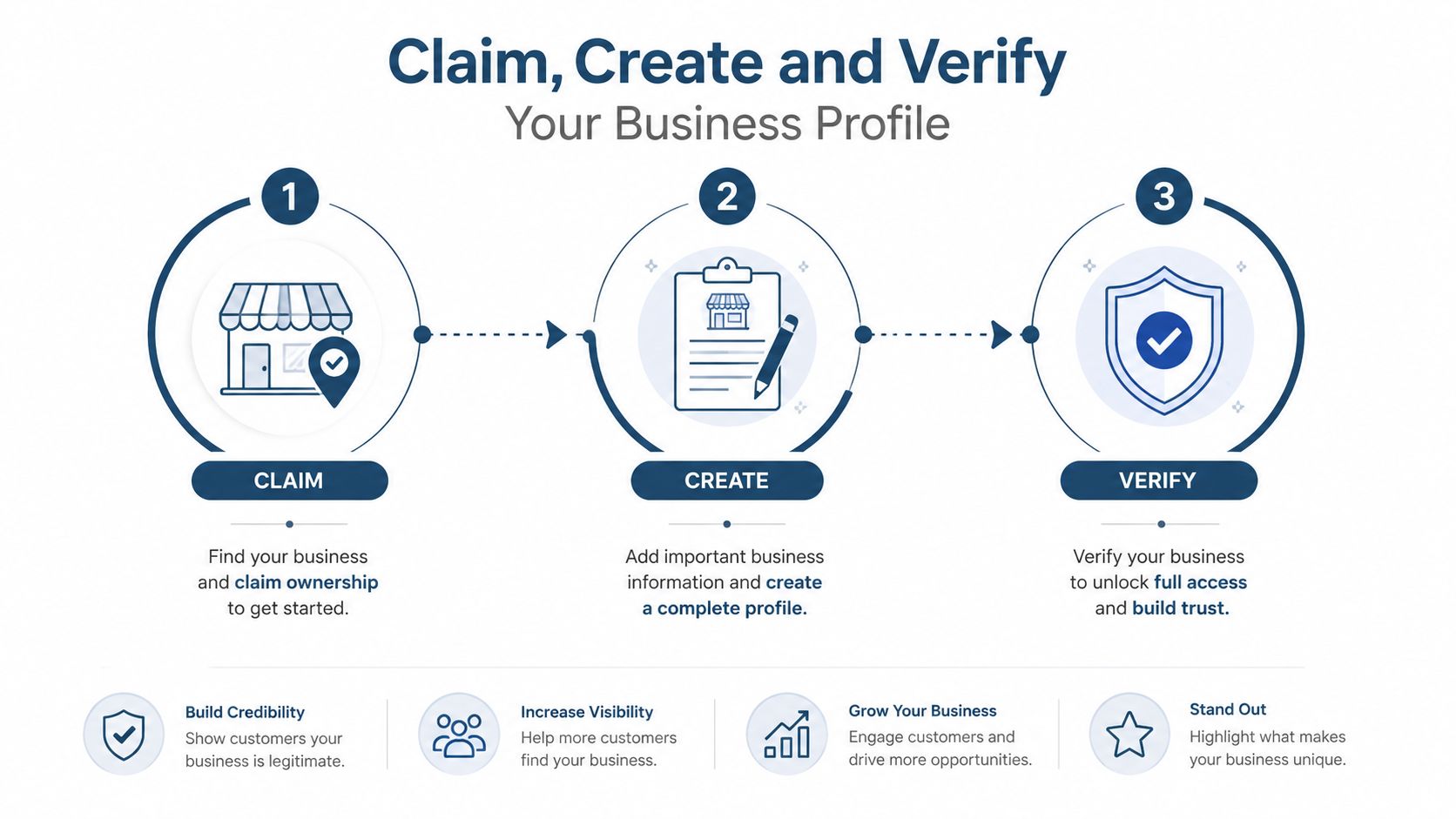
Verification is the gate. Google permits several routes, including postcard, phone, email and video, but availability depends on the business and the checks Google applies. That's the point where ownership or management gets proven, and the profile becomes properly controllable. One industry guide on verification lays out those methods and the fact that Google chooses what's available on a case-by-case basis (verification methods overview).
The flow is simple in concept, but the order matters. Claim or create, then verify, then optimise. Skip that order and you can waste time editing details that won't fully stick yet.
You can usually prepare your copy, photos and service details while verification is pending, but don't rely on those changes being the final state until Google has approved the profile.
If your business has a public address, make sure it's the right one before you push ahead. If you're configuring a service-area profile, choose the service model intentionally rather than forcing a storefront-style setup. For UK businesses that need to keep a residential address private, that early choice prevents a lot of messy backtracking later. Use this guide on how to optimise business address on Google Business Profile if address visibility is the part you're trying to get right.
Configure Your Listing for Maximum Maps Visibility
A verified profile still needs careful setup before it can pull its weight in Maps. The fields that carry the most weight are the ones people use to judge whether the business is real, reachable and relevant, so focus first on the business name, primary category, secondary categories, opening hours, special hours, phone number, website, and either a public address or a service area, depending on how the business operates.
Keep the core fields clean
The business name should stay exact. Leave out location terms and added keywords, even if they seem like an easy way to get found, because Google's rules are clear that the profile should use the actual name only (Google business representation guidelines). Hours and contact details need the same discipline. If they are wrong, Maps users lose trust quickly, and that usually shows up in fewer calls and fewer visits.
Attributes come next. In the UK, useful examples include wheelchair access, women-led, and free Wi-Fi. They are not decoration. They help someone decide whether the business fits what they need before they make contact.
Photos and posts belong in the same setup pass. A clear exterior shot, team images, service photos, and regular updates give the listing context and make it feel active. If a profile looks empty, people often assume the business has gone quiet, even when the team is busy behind the scenes.
For service businesses, make the service list specific. A guide like how to optimise services on Google Business Profile is useful here, because the service names should match the phrases customers use, not internal labels from your job sheet or CRM.
Practical rule: the profile should answer the customer's next question before they have to leave Maps and look elsewhere.
If you manage more than one location, avoid copying everything across without checking it. Hours, service coverage and attributes can differ in small but important ways. Keep what should stay consistent, and be precise where the businesses are different.
Turn Ranking Data Into the Next Action
Once the profile is live, the question isn't whether it exists. It's whether it appears in the right places for the right searches. That's where geo-grid rank checks help, because they show how the listing performs around the business on a 5×5, 7×7 or 9×9 grid, rather than assuming one postcode tells the full story.
Use the data to choose the next fix
A grid scan can show strong visibility on one side of town and weak visibility a few streets away. That's more useful than staring at a single average position, because local search is tied to location. In practice, it tells you whether the listing is functioning as a local acquisition asset or just looking complete on paper.
VisiLocali's own workflow is built around this problem. Its geo-grid maps, Profile Analyser, Review Analyser and Post Analyser compare the profile side by side with statistically competitive competitors, then turn the gaps into prioritised recommendations. That matters because the best next action is rarely “do more SEO”, it's usually something concrete like fixing a category choice, improving review response habits, or aligning the profile with how nearby competitors are presenting themselves (VisiLocali ranking reports).
The point of ranking data is not reporting for reporting's sake. It's decision-making.
- If visibility is patchy: check relevance, categories and service wording.
- If calls are low: look at hours, phone clarity and how the listing appears in the local pack.
- If competitor profiles are stronger: compare the gap in reviews, photos and post activity.
- If one area performs well and another doesn't: use the grid scan to test whether that location needs tighter service coverage or better local relevance.
That mindset changes how listing management works. Instead of guessing what might help, you're using the profile, competitor data and local rank patterns to decide what to improve next. That's the difference between having a listing and running one properly.
Service Areas, Privacy and the Nearby Town Question
Service-area businesses ask a different question from shopfront businesses. They want Maps visibility without publishing a home address, and Google does allow that by letting the business hide the street address and define where it serves customers instead (Google service-area guidance). That setup is different from a storefront listing, where the customer-visit location is part of the public picture.

The common mistake is assuming that more service areas automatically means wider visibility. Google lets you specify service regions, but it doesn't promise broader Map Pack coverage just because you've added more towns. Visibility still depends on relevance, prominence and distance, which is why neighbouring towns can behave very differently even when they sit close together.
What usually goes wrong
A business serving Birmingham, Solihull and Wolverhampton may think the profile should rank evenly across all three. In reality, one area may perform well while another barely moves. That's normal in dense UK geography, especially where town boundaries, suburbs and postcodes overlap in awkward ways.
A tighter service-area list can be more useful than a long one if the business only wants work in a limited radius. The profile should reflect the actual commercial footprint, not every place the owner hopes to win someday. If you're unsure whether an added town is helping, scan that town separately with a geo-grid check and judge the visibility pattern rather than relying on guesswork.
Bigger service-area lists don't fix weak relevance. They just make weak relevance more visible.
For home-visit businesses, privacy usually matters as much as ranking. A hidden address and clear service coverage give you that privacy without removing the ability to appear in Maps. For hybrid businesses, the public-facing setup needs to be even cleaner, because the listing has to reflect both customer visits and home visits without muddling the two.
Troubleshooting and Your First 30 Days on Google Maps
The same problems tend to surface at the same point. The postcard does not arrive, phone verification is not offered, video verification is rejected, or a duplicate listing gets in the way of the claim. Each problem has a practical next move, and the usual mistake is to keep clicking through the process instead of fixing the issue that caused the block.
If the postcard never turns up, check the address format first, then request the option again through the profile flow if Google still offers it. If phone verification is not available, do not assume something is wrong with the profile, because Google only enables some methods for some businesses. If video verification is rejected, film again and show clearer proof of the business, such as signage, equipment, entrance details, and evidence that you control the premises or operate the service area.
A sensible first 30 days routine
Start with the basics. Recheck the business name, category, hours, phone number, and website so the profile is clean before you do anything else.
Then publish a first post. Keep it simple and relevant, such as a seasonal offer or a service update. Ask for reviews once recent work is complete, because fresh feedback helps the profile look active and trustworthy. Run a geo-grid scan to see how the listing appears around the business and in nearby towns, then act on the top recommendation rather than changing several fields at once. Scan again after the change so you can compare the results properly.
If a duplicate listing is blocking the claim, deal with the duplicate path first. Do not build on top of a second profile and hope Google sorts it out. Clean ownership is still the fastest route.
Inside the profile, the metrics worth watching are the ones Google already exposes, views, searches, calls, directions and website clicks. Those are the signs that the listing is doing real work. If they move the right way after you verify, configure, and keep improving the profile, you know the Maps listing is no longer just visible, it is performing.
If you have not claimed your profile yet, log into Google, search for your business name in Maps, and start with the ownership check today. Use your first week to verify the profile, tidy the core fields, and run a geo-grid scan so you are not relying on guesswork.
